> ## Documentation Index
> Fetch the complete documentation index at: https://docs.istudix.app/llms.txt
> Use this file to discover all available pages before exploring further.
# Create Your iStudix Account with Email or Google
> How to sign up for iStudix with your name, email, and a strong password, or with Google. Includes password requirements and joining through an invitation.
To create an iStudix account, go to [www.istudix.app](https://www.istudix.app/), click **Sign up**, and fill in your name, email, and password. You can also sign up with your Google account.
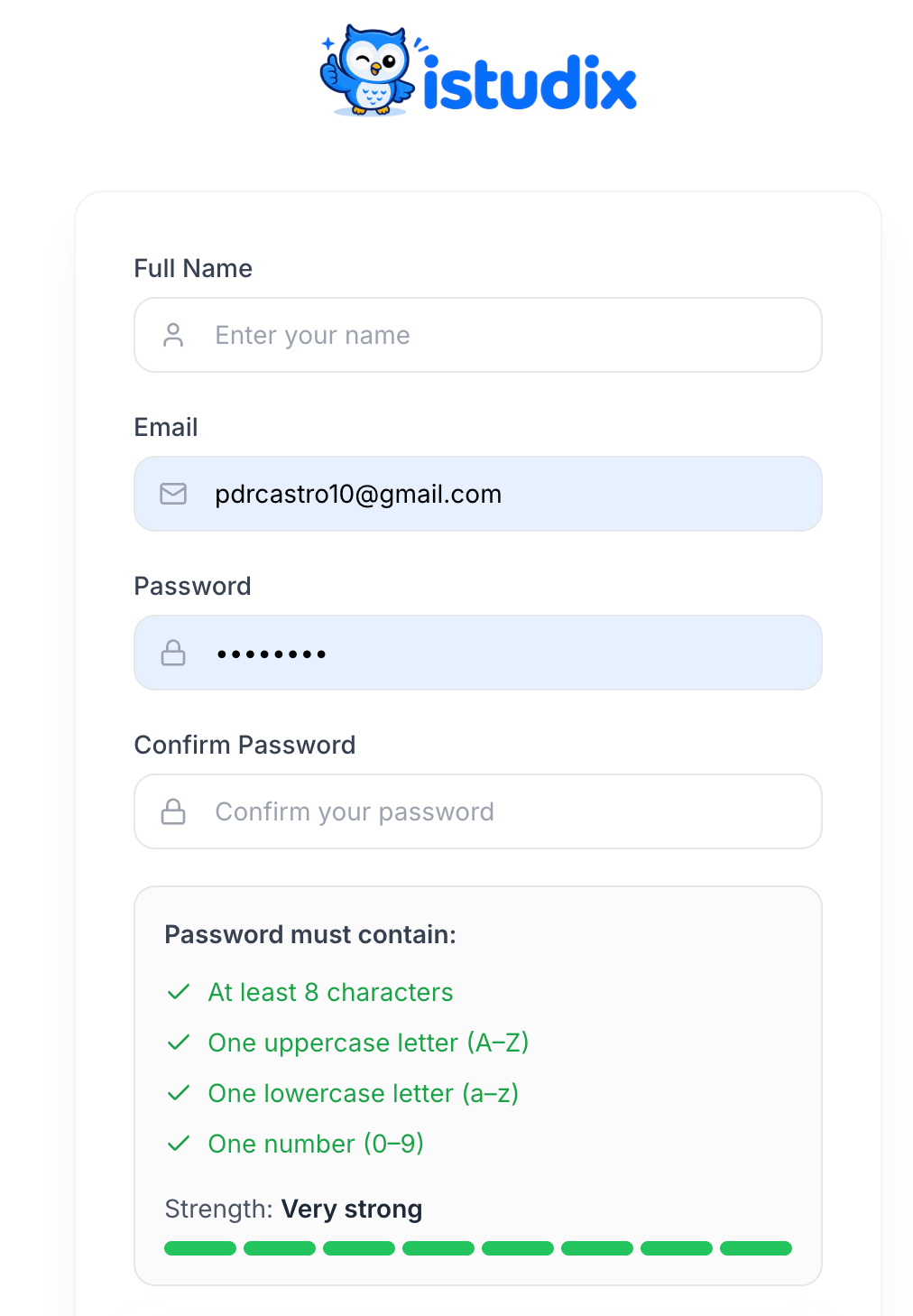 Visit [https://www.istudix.app/](https://www.istudix.app/) in your browser.
On the sign-in screen, click **Sign up** next to "Don't have an account?".
Fill in **Full Name**, **Email**, **Password**, and **Confirm Password**.
Your password must contain:
* At least 8 characters
* One uppercase letter (A–Z)
* One lowercase letter (a–z)
* One number (0–9)
Each requirement turns green when met, and the **Strength** bar shows how strong your password is.
Submit the form. You'll be taken to your [dashboard](/getting-started/dashboard).
Prefer not to manage a password? Use **Continue with Google** on the sign-in screen instead.
Make sure you type [**www.istudix.app**](http://www.istudix.app) (with `www`) in your browser address bar.
## Joining through an invitation
If someone invited you to their organization, open the invitation link from your email. You'll be asked to sign in or create an account, and then you'll join the organization automatically. See [Accept an invitation](/account/invitations).
## Related articles
* [Sign in to iStudix](/getting-started/sign-in)
* [Can't sign in?](/support/troubleshooting)
* [Get started in 5 minutes](/quickstart)
This documentation is built and hosted on [Mintlify](https://mintlify.com), a developer documentation platform.
Visit [https://www.istudix.app/](https://www.istudix.app/) in your browser.
On the sign-in screen, click **Sign up** next to "Don't have an account?".
Fill in **Full Name**, **Email**, **Password**, and **Confirm Password**.
Your password must contain:
* At least 8 characters
* One uppercase letter (A–Z)
* One lowercase letter (a–z)
* One number (0–9)
Each requirement turns green when met, and the **Strength** bar shows how strong your password is.
Submit the form. You'll be taken to your [dashboard](/getting-started/dashboard).
Prefer not to manage a password? Use **Continue with Google** on the sign-in screen instead.
Make sure you type [**www.istudix.app**](http://www.istudix.app) (with `www`) in your browser address bar.
## Joining through an invitation
If someone invited you to their organization, open the invitation link from your email. You'll be asked to sign in or create an account, and then you'll join the organization automatically. See [Accept an invitation](/account/invitations).
## Related articles
* [Sign in to iStudix](/getting-started/sign-in)
* [Can't sign in?](/support/troubleshooting)
* [Get started in 5 minutes](/quickstart)
This documentation is built and hosted on [Mintlify](https://mintlify.com), a developer documentation platform.