> ## Documentation Index
> Fetch the complete documentation index at: https://docs.istudix.app/llms.txt
> Use this file to discover all available pages before exploring further.
# Practice with AI Quizzes and Mock Exams in iStudix
> How to generate multiple-choice quizzes and scored practice exams from your study materials in iStudix, answer questions, and track your progress.
iStudix creates quizzes and practice exams from your study materials. Use quizzes for quick multiple-choice checks while you learn, and exams for a longer, scored test before the real thing.
## Create a quiz or exam
Open a [notebook](/using-istudix/notebooks) with the materials you want to be tested on.
Select **Quiz** for a short check, or **Exam** for a longer practice test.
Let iStudix generate questions based on your content.
## Take a quiz
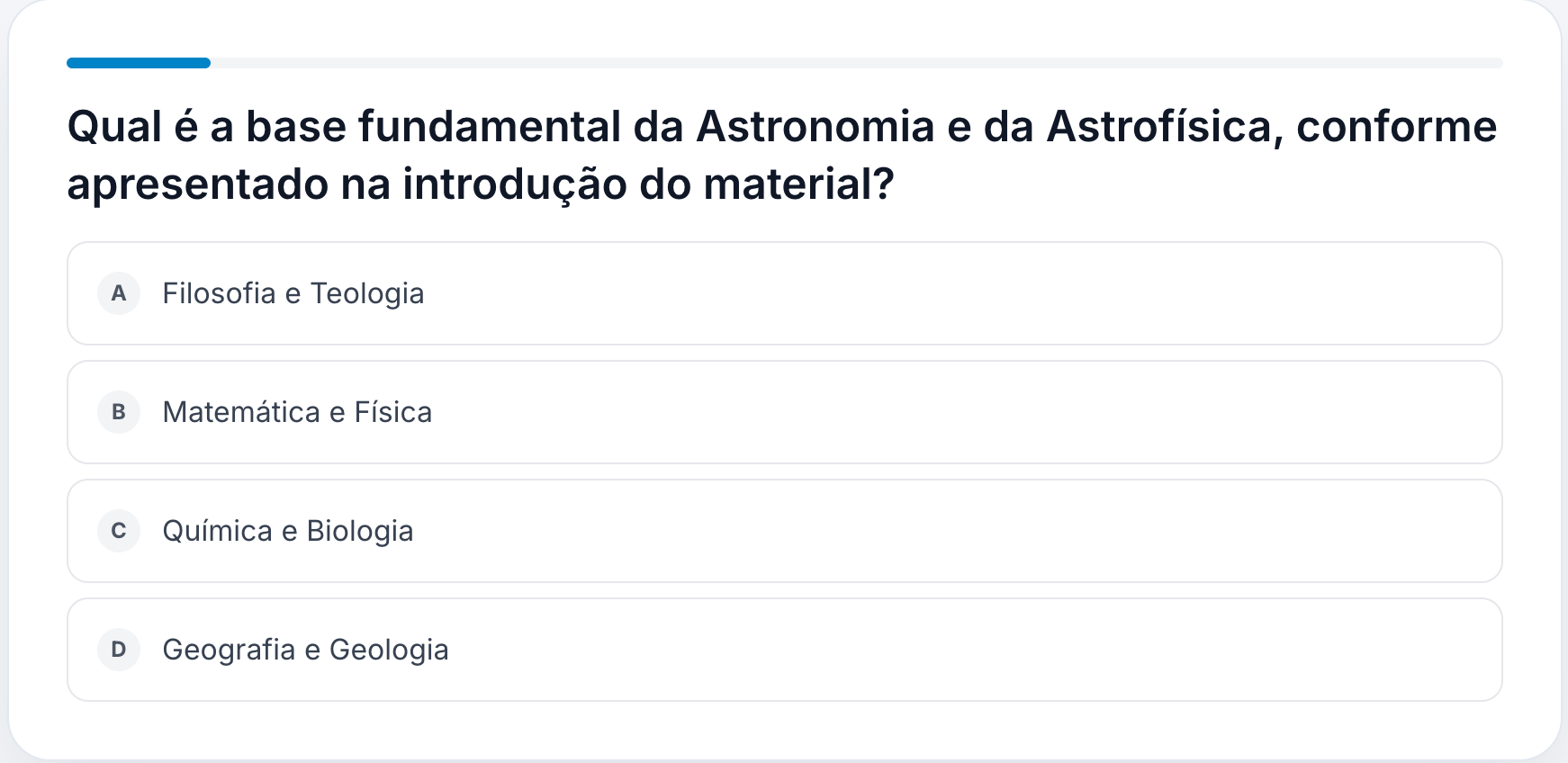
Each quiz question has four options, **A** to **D**. Click the answer you think is correct. The bar at the top shows how far through the quiz you are.
 ## Take an exam
Exam questions show their type and point value above the question, for example **Multiple choice · 2 points**. The counter at the bottom shows how many questions you've answered, such as "0 of 20 answered".
## Take an exam
Exam questions show their type and point value above the question, for example **Multiple choice · 2 points**. The counter at the bottom shows how many questions you've answered, such as "0 of 20 answered".
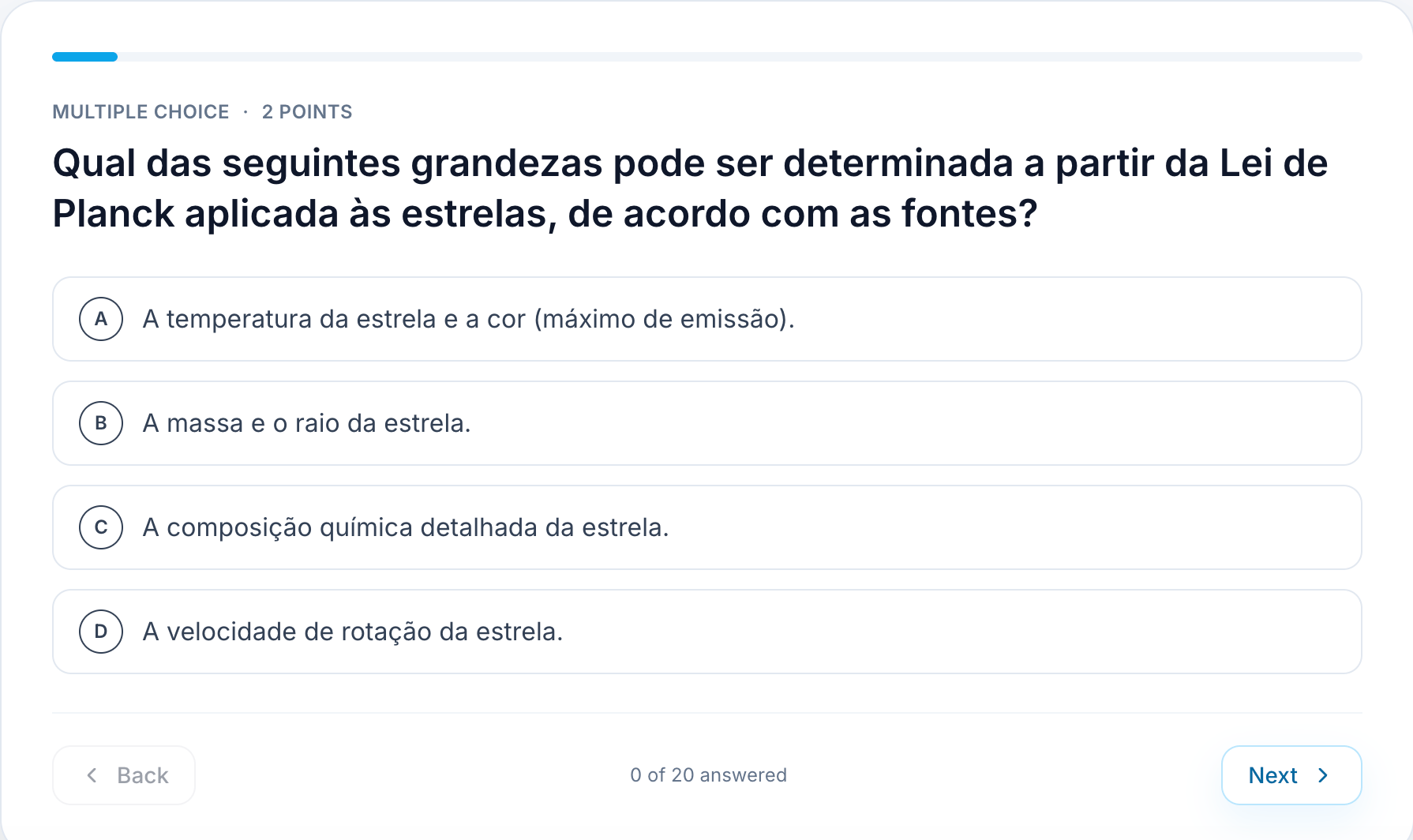 Select one of the options **A** to **D**.
Click **Next** to continue, or **Back** to review a previous question.
When you've answered every question, submit the exam and review your score and the questions you missed.
Go back to the related material or [flashcards](/using-istudix/flashcards) for the topics you missed.
Before a real exam, schedule a practice exam in your [calendar](/using-istudix/calendar) a few days ahead so you have time to review your mistakes.
## Related articles
* [Create and study flashcards](/using-istudix/flashcards)
* [Track your learning progress](/using-istudix/progress)
* [Create and organize notebooks](/using-istudix/notebooks)
This documentation is built and hosted on [Mintlify](https://mintlify.com), a developer documentation platform.
Select one of the options **A** to **D**.
Click **Next** to continue, or **Back** to review a previous question.
When you've answered every question, submit the exam and review your score and the questions you missed.
Go back to the related material or [flashcards](/using-istudix/flashcards) for the topics you missed.
Before a real exam, schedule a practice exam in your [calendar](/using-istudix/calendar) a few days ahead so you have time to review your mistakes.
## Related articles
* [Create and study flashcards](/using-istudix/flashcards)
* [Track your learning progress](/using-istudix/progress)
* [Create and organize notebooks](/using-istudix/notebooks)
This documentation is built and hosted on [Mintlify](https://mintlify.com), a developer documentation platform.