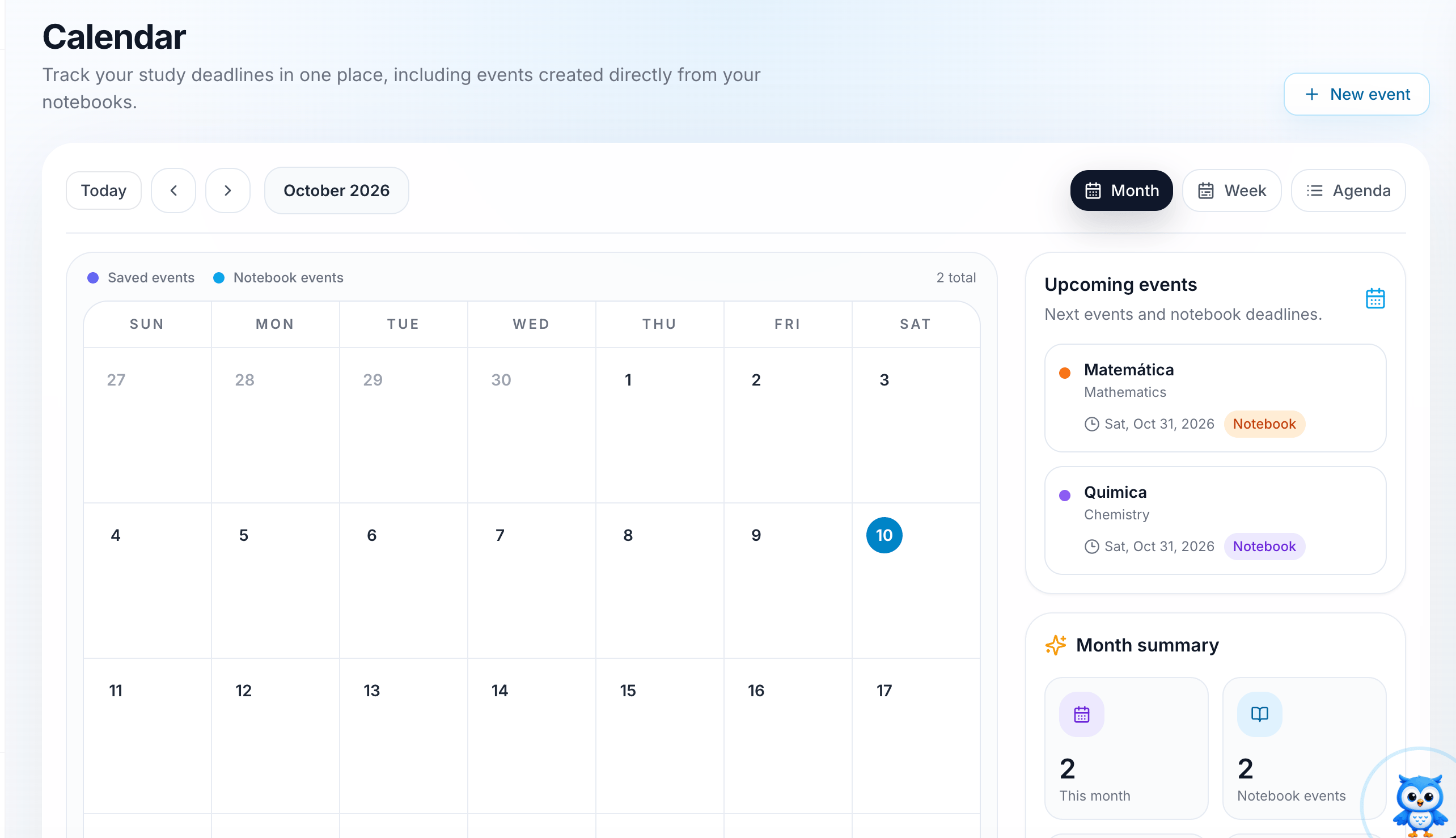
What you see on the Calendar
- Calendar grid: the current month, with today highlighted. Use Today, the arrow buttons, and the month selector to move between dates.
- Event types: the legend at the top of the grid shows two kinds of events:
- Saved events: events you add yourself with New event.
- Notebook events: exam dates added automatically from your notebooks.
- Upcoming events: a list of your next events and notebook deadlines, with the subject, date, and a tag showing where the event came from.
- Month summary: how many events you have this month and how many come from notebooks.
Add an exam to the calendar
Exams are added automatically when you create a notebook. Enter the exam date in the new notebook, and iStudix places it on the calendar for you.1
Create a new notebook
From your dashboard, open Notebooks and create a new notebook for the subject, for example “Matemática”.
2
Enter the exam date
While creating the notebook, set the exam date.
3
Check the calendar
Open Calendar from the sidebar. The exam appears on the calendar grid and in Upcoming events with a Notebook tag.
See your upcoming exams
Check the Upcoming events panel on the right. Each card shows:- The event or notebook name (for example, Matemática) and its subject (Mathematics).
- The date of the exam or deadline.
- A Notebook tag when the event was created from a notebook.
Switch calendar views
Use the buttons in the top-right of the calendar:Frequently asked questions
Why are some events tagged Notebook?
Why are some events tagged Notebook?
These events come from the exam date you set when creating a notebook. They show up on the calendar automatically, so you don’t need to add them again.
What is the difference between saved events and notebook events?
What is the difference between saved events and notebook events?
Saved events are ones you add with New event. Notebook events come from your notebooks. The legend colors on the calendar help you tell them apart.
How do I go back to the current month?
How do I go back to the current month?
Click Today at the top-left of the calendar.