Create a notebook
1
Open Notebooks
From your dashboard, click Notebooks.
2
Create a new notebook
Click to create a new notebook and give it a clear name, such as “Biology 101” or “Exam prep”.
3
Set the exam date
Enter the date of your exam. iStudix adds it to your Calendar automatically, so it appears in Upcoming events.
4
Add materials
Add materials you’ve uploaded to the notebook.
Study with the AI Tutor
The AI Tutor answers questions using your notebook’s materials. Your full notebook is always the context, so answers come from your own documents.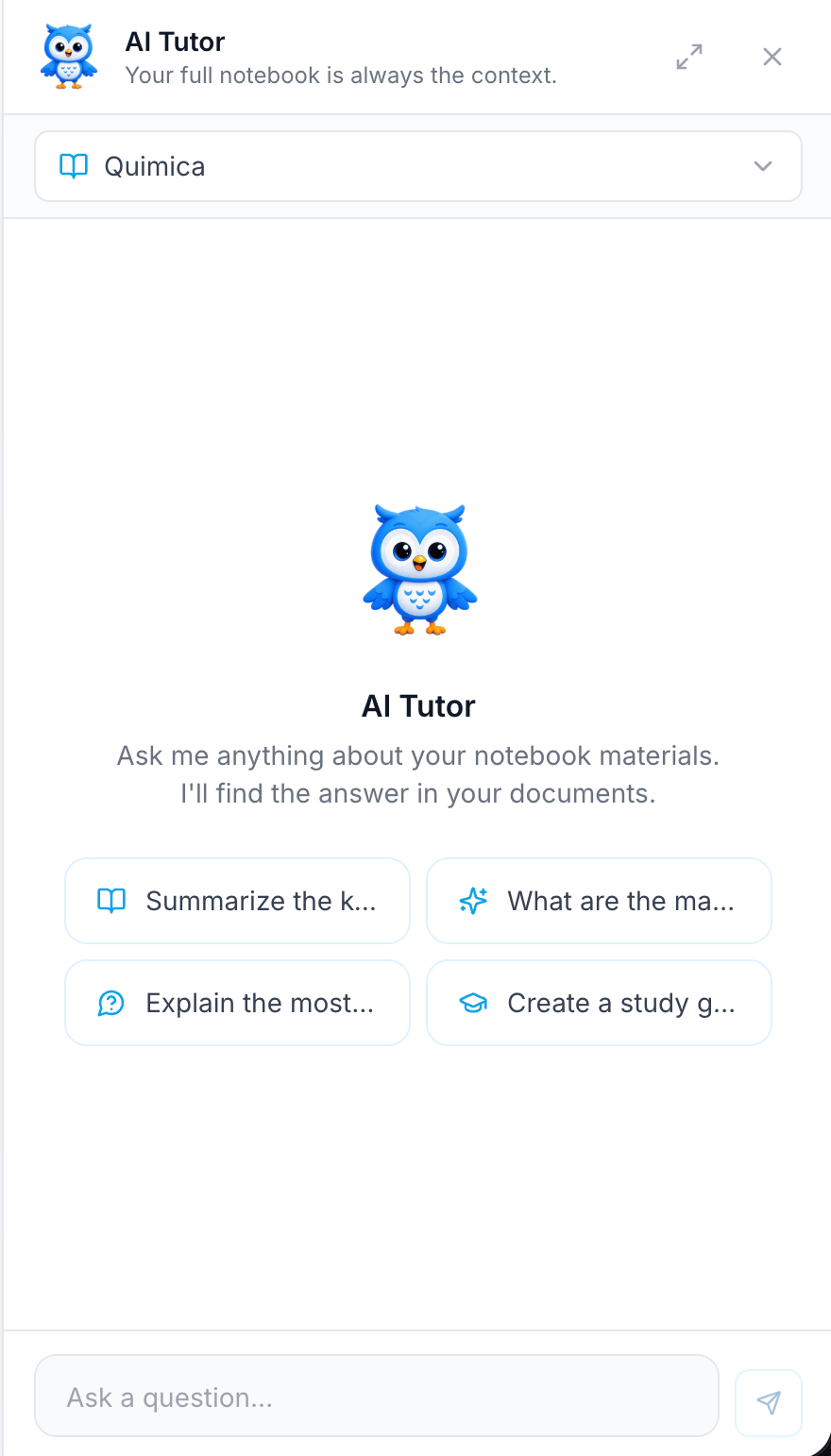
1
Open the AI Tutor
Open the AI Tutor panel. Click the expand icon to make it larger.
2
Choose a notebook
Use the dropdown at the top to pick the notebook you want to ask about.
3
Ask a question
Type in Ask a question… and send it, or click a suggested prompt such as summarizing key points or creating a study guide.
- “Summarize the main ideas of this chapter.”
- “Explain this concept in simpler terms.”
- “Create a study guide for this notebook.”